
Your thoughts, in good company
Space to think. Room to connect.
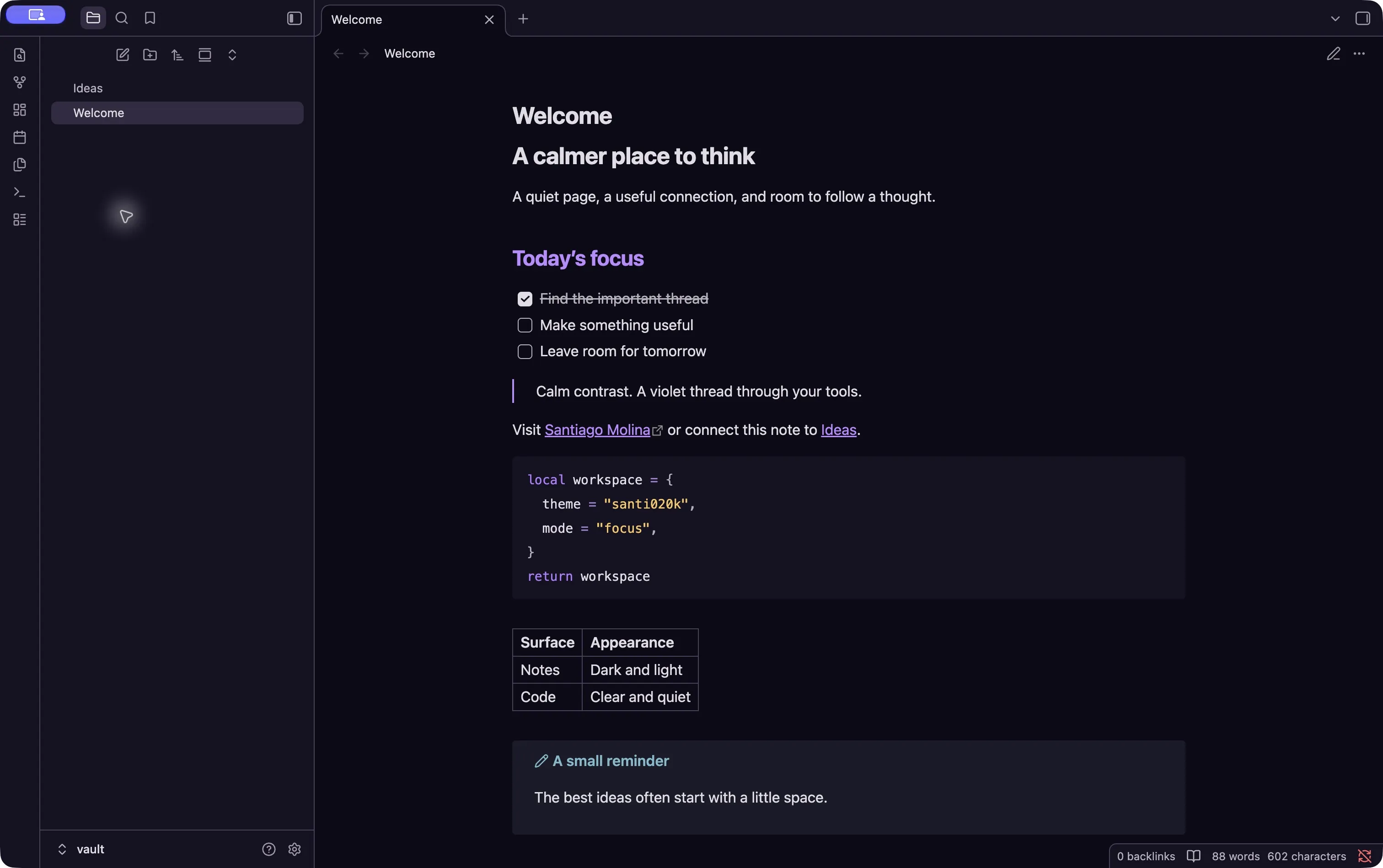
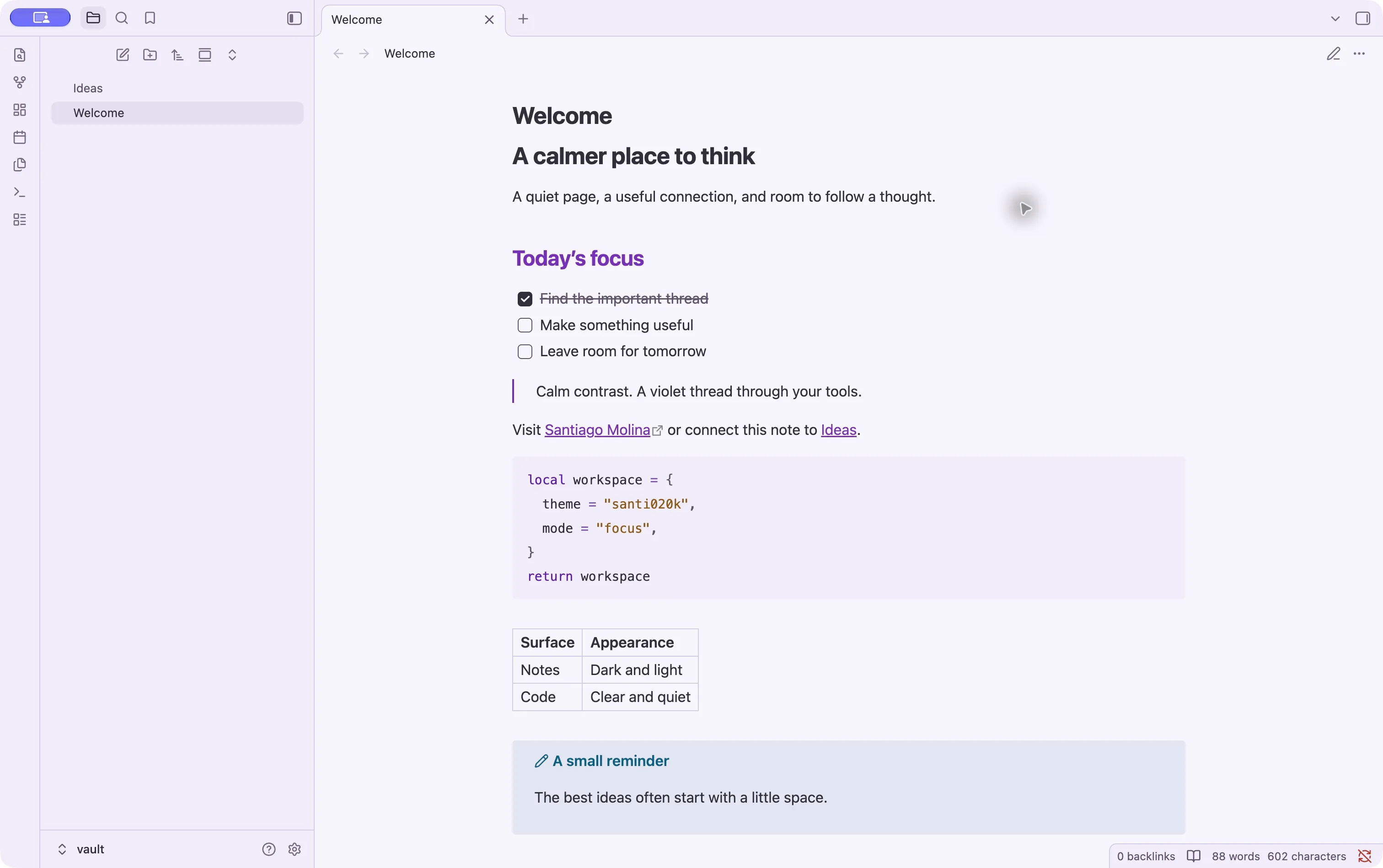
Bring the same violet palette to your notes, links, and daily discoveries. Read comfortably in light or dark, at your desk or on your phone.
Start with your vault
Your notes stay exactly where they are.
Extract the theme
Download the ZIP and copy its
Santi020kfolder into<vault>/.obsidian/themes/. Use your custom configuration folder if you have changed it.Choose Santi020k
In Settings → Appearance, select Santi020k under Themes. Choose Light, Dark, or Adapt to system as your base color scheme. Restart Obsidian if the theme does not appear.
Bring it to your phone
With Obsidian Sync, enable Themes and snippets under Vault configuration sync on both devices. After sync finishes, restart the mobile app and select Santi020k under Appearance. Other sync tools must include the configuration folder.
A simple, local theme
No plugin is required. Your native fonts, text size, editing controls, and mobile keyboard behavior are preserved.
This is a manual installation. The theme is not yet listed in Obsidian’s community directory.
The theme folder must contain files named theme.css and manifest.json. The ZIP already uses those names.
Considered in both appearances
From the first sentence to the next connection.
Reading and writing
Coordinated headings, links, selections, code blocks, tables, and quotations. Syntax stays readable on the canvas and selected text.
The surrounding workspace
Navigation, tabs, popovers, graph colors, focus borders, and status colors follow the same palette. Mobile keeps the app’s native layout.
Update or restore
Replace only the theme’s CSS and manifest to update. Select the default theme before removing the Santi020k folder to restore the original appearance. Your notes are untouched.
Other themes, CSS snippets, and plugins can override styling. Try a clean vault when checking a visual conflict.