


Halo
minimal collectionA quiet circle. An open canvas.
For the rhythm of your day
Keep the wallpaper you love as your screen moves between light and dark. One paired file for Mac. Two saved setups and a simple automation for iPhone.
On your Mac
Choose a design below and keep its file in a permanent folder. Each HEIC contains the original desktop composition in light and dark.
Open System Settings → Wallpaper, choose Add Photo or Choose File, and select the HEIC. Where offered, choose Automatic in the wallpaper’s appearance menu.
In System Settings → Appearance, select Light, Dark, or Auto. Auto follows your Mac’s day and night schedule. Labels and custom-wallpaper controls vary by macOS version.
One design. Two appearances.
See both sides before you choose. Each Mac download pairs the light and dark artwork in one file.
Free HEIC download · Original desktop dimensions
A quiet circle. An open canvas.


A little shape. A lot of space.


Light, held in violet glass.


Soft folds. A familiar signature.


Matte forms. Gentle shadows.
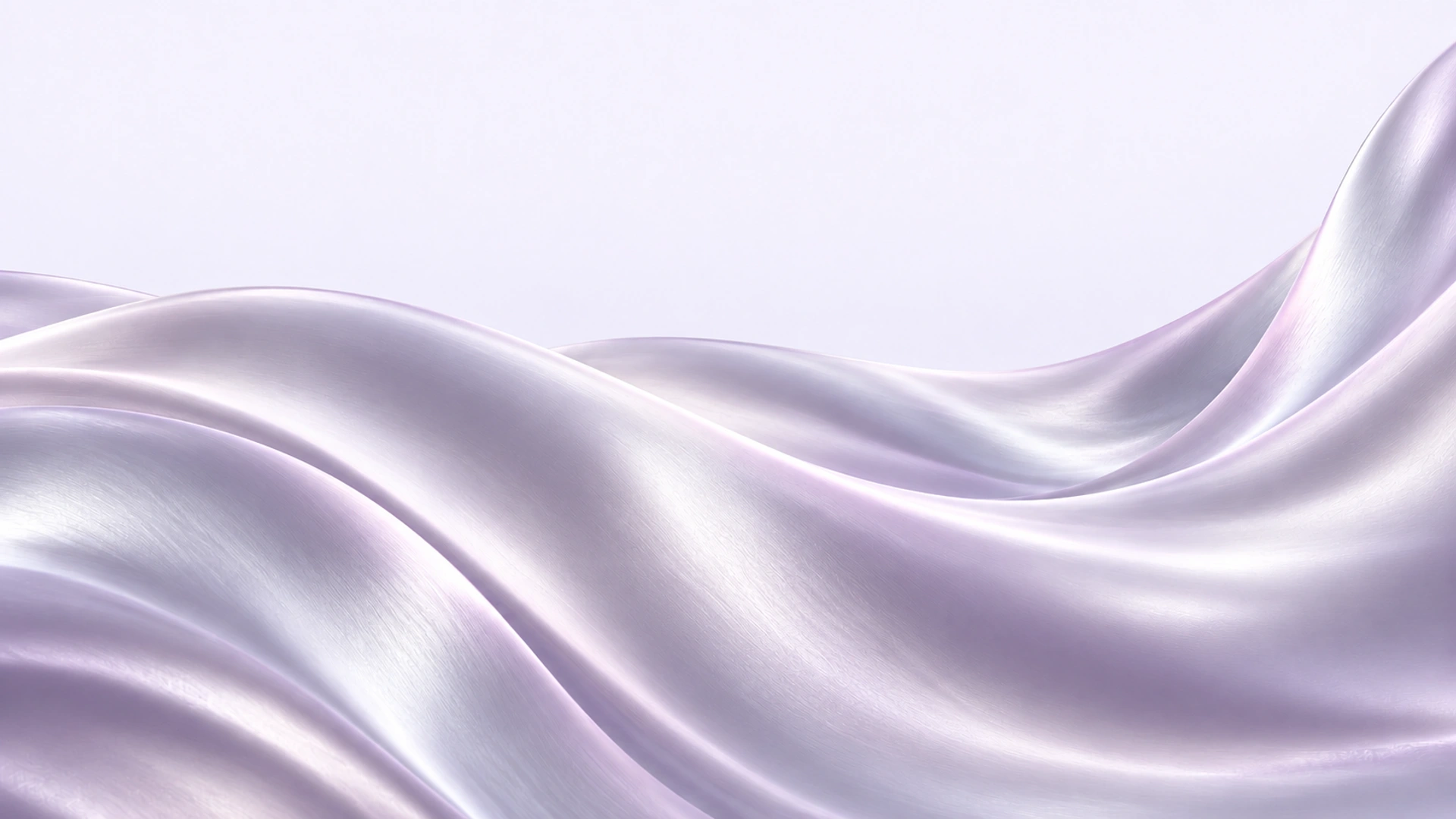
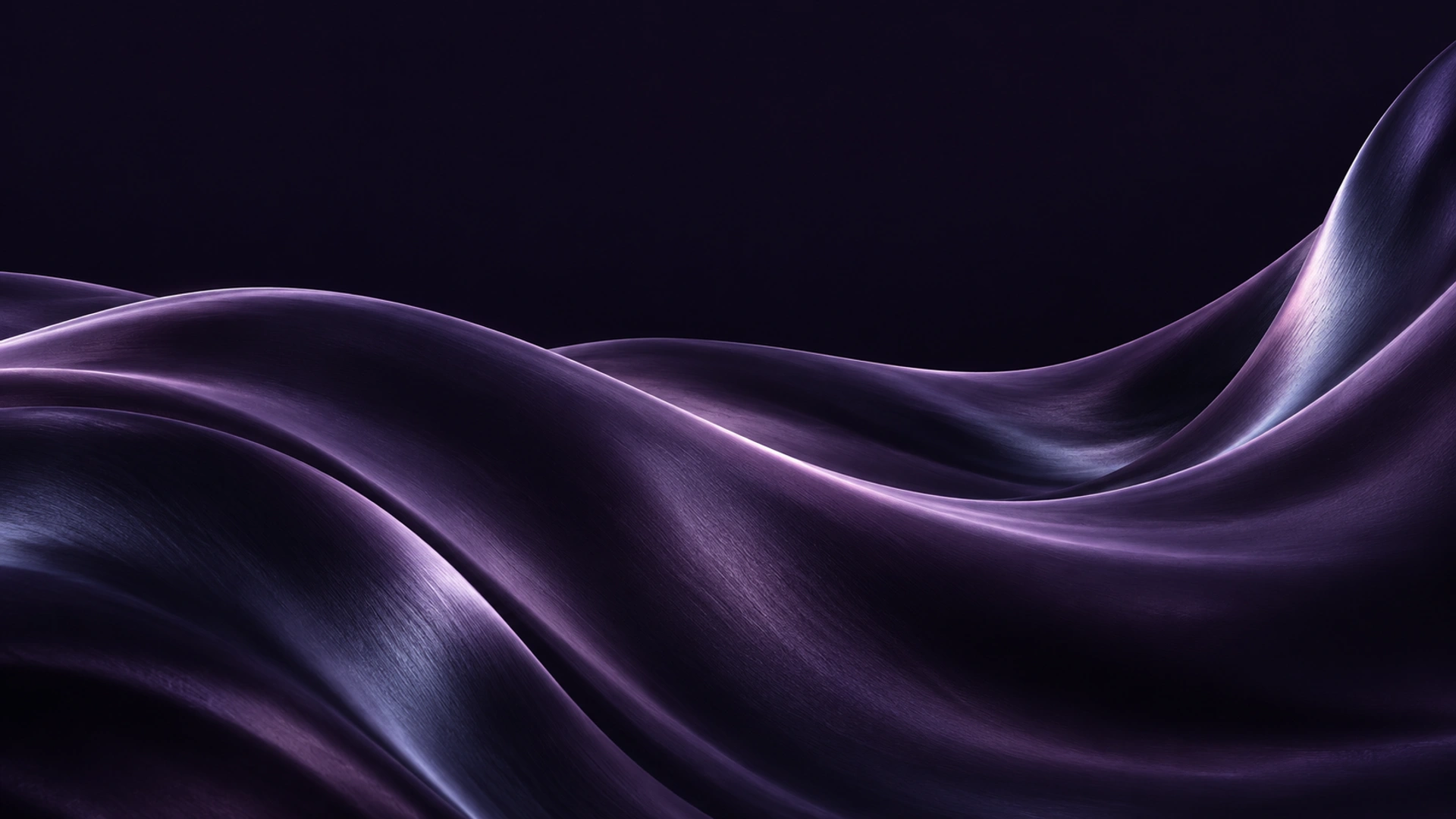
Violet, in motion.
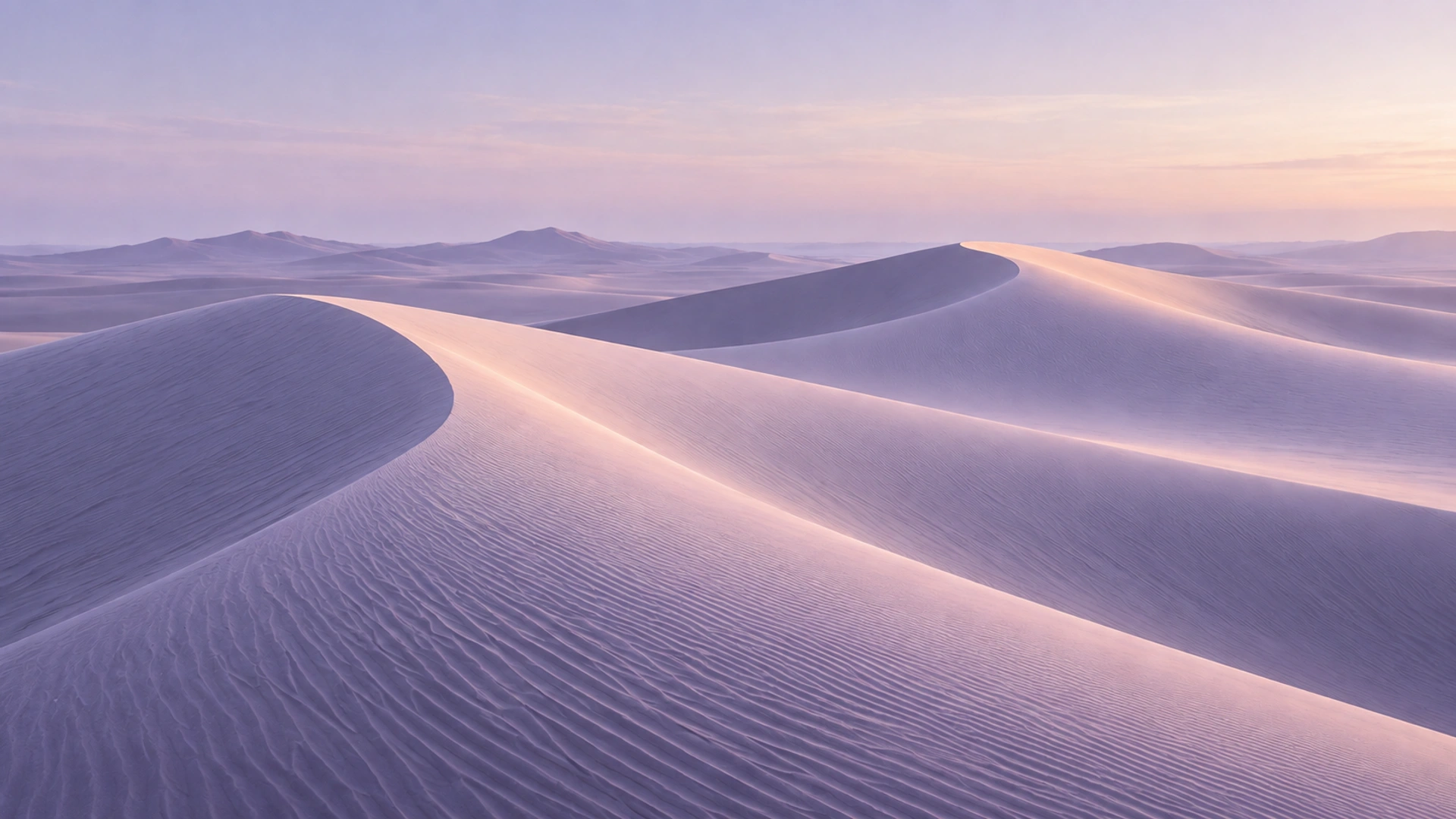
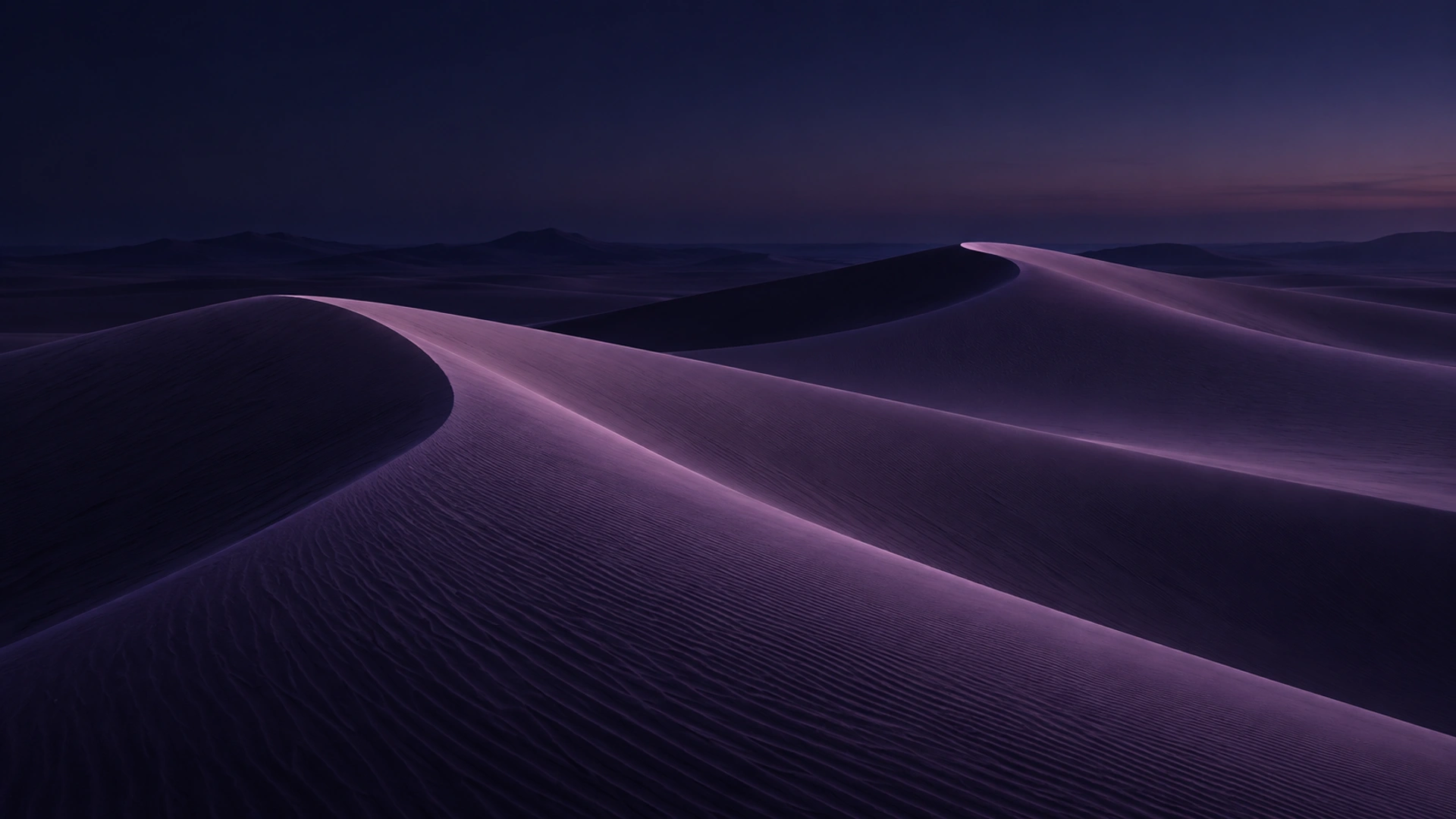
A landscape for your screen.

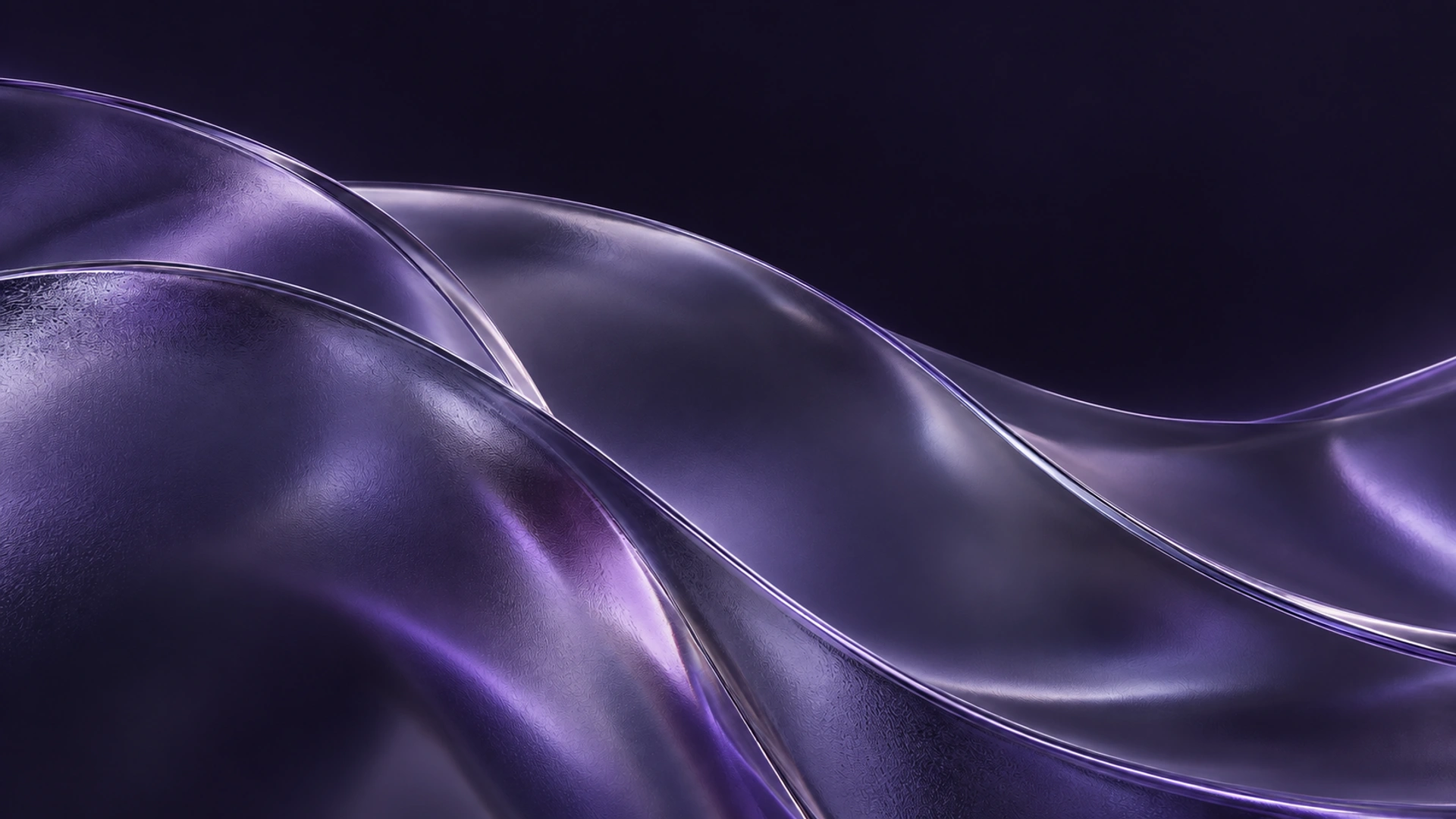
Depth, softly diffused.
Looking for an earlier design? Browse the Classic archive.
On your iPhone
Use the iPhone setup pack to create a light pair and a dark pair in Settings → Wallpaper. Keep their clocks and widgets readable.
In Shortcuts, add Switch Between Wallpapers and select the saved light pair. Repeat for dark. Add Set Appearance to each if you also want the shortcut to set the matching system appearance.
Create a Time of Day automation at Sunrise to run the light shortcut, and one at Sunset to run the dark shortcut, repeating daily. Enable immediate or unattended running where available, then test both shortcuts manually.
Keep it simple
Mac downloads contain appearance metadata and two still images. iPhone uses your own saved wallpaper pairs; a Mac HEIC does not install a pair on iOS. No app, subscription, or configuration profile is required.


